| Number |
Name |
Description |
 |
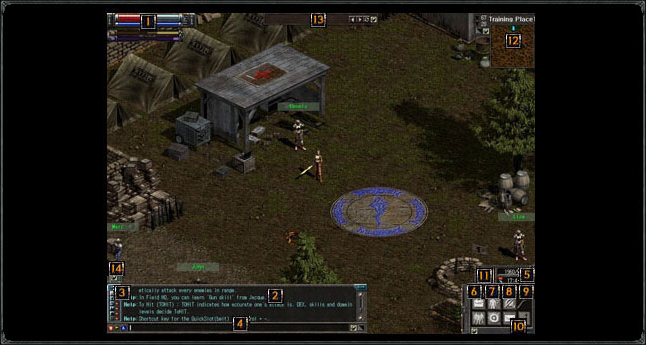
HP & MP bars.
(Vampire = HP & EXP bars) |
The thick, red bar shows HP, and the thin, blue bar MP. The orange bar on the vampire interface shows EXP. |
 |
Chat Window |
This window shows messages sent by the player him/herself or other players. You can scroll to previous messages by using the mouse scroll wheel or the scroll bar to the right. |
 |
Chat Mode |
Toggles the chat mode. |
 |
Chat Input Window |
You can type your message here. |
 |
Time/Date |
Displays the current time and date within the game. The sun/moon icon below shows the day/night cycle. |
 |
Menu |
Clicking on this tab displays four player buttons.
 |
Inventory |
Shortcut Key TAB
Opens the inventory window and displays items within. |
 |
Equipment |
Shortcut Key Ctrl + TAB
Opens the equipment window and displays items currently equipped on the character. You can equip new items here. |
 |
Character Info |
Shortcut Key Ctrl + I
Opens the character information window and displays the current status of the character. |
 |
Party |
Shortcut Key Ctrl + P
Opens the party window. You can confirm the party system here. |
|
 |
Exp |
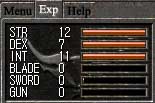
You can quickly confirm the STR, DEX, INT as well as the level of different skill domains. |
 |
Team/Clan |
Displays team/clan-related information. |
 |
Help |
Clicking on this tab displays five help buttons.
 |
Basic Help |
Displays general gameplay information. |
 |
Chat Help |
Displays information related to the chat window and buttons. |
 |
Combat Help |
Displays information on monster hunting and looting. |
 |
Skill Help |
Displays information that may be of help in increasing skills. |
 |
Guild Help |
Displays guild-related information. |
|
 |
System Menu |
 Shortcut ESC, Displays Game Options and the Log Out button. Shortcut ESC, Displays Game Options and the Log Out button. |
 |
Skill In Use |
Displays currently activated skill. You can click on this button to switch skills to use. |
 |
Mini Map |
Shortcut Key Ctrl + M
The location of the character is displayed as a blue human figure. + shows the location of NPC’s. Green areas signify safe areas. Mouse over a + mark displays details about the NPC. You can move the window to anywhere on the screen. |
 |
Status |
Displays the current status and the type of sustained magic such as poison/enchantment/drain which the character is currently affected by. |
 |
Quick Item Slots |
These slots appear when a belt item is equipped. You can drag quick items such as healing ampoules, mana ampoules, or ammunition onto these slots. Depending on the number of belt slots, you can use the items by pressing F1 – F8. You can move the window to anywhere on the screen. |
 |
Semi-Transparent / Auto-hide |
Applicable windows show this icon. You can turn the window semi-transparent, thus expanding the field of vision, or you can automatically minimize it when the window is not in use.
 |
Basic Help |
Displays general gameplay information. |
 |
Chat Help |
Displays information related to the chat window and buttons. |
|